
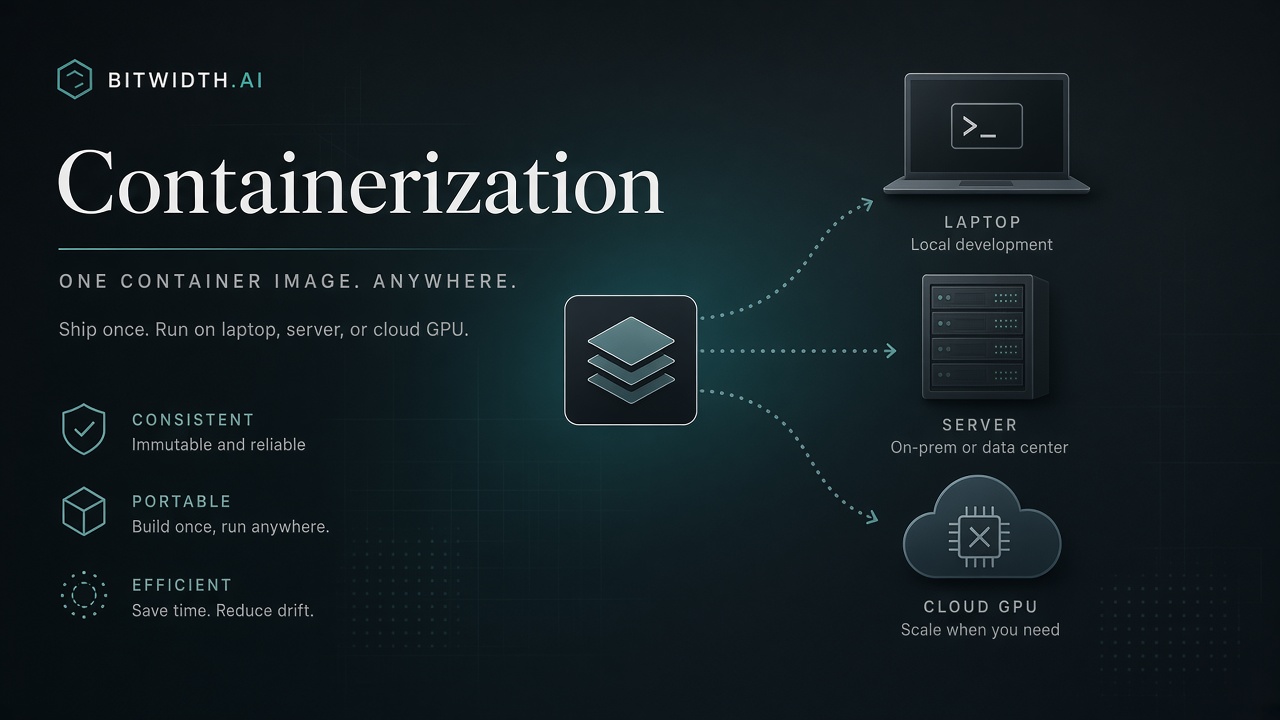
A model that runs on your machine still has to run reliably somewhere else — a server, a teammate's box, a cloud GPU. Containers package a model and everything it needs into one portable unit, and cloud hosting runs that unit at scale. This guide covers both.
Why containerize AI workflows
A container bundles the model, the CUDA libraries, and every dependency into a single image. That solves the problems that make AI setups fragile:
- Consistency. The same image runs identically across development, staging, and production — no “works on my machine.” 1
- Dependency isolation. CUDA, Python, and system libraries are bundled together, ending version conflicts.
- Reproducibility. Pin an image tag and the deployment stays identical over time.
- Orchestration-ready. Containers integrate natively with Kubernetes and Docker Compose, with fine-grained CPU/GPU allocation.
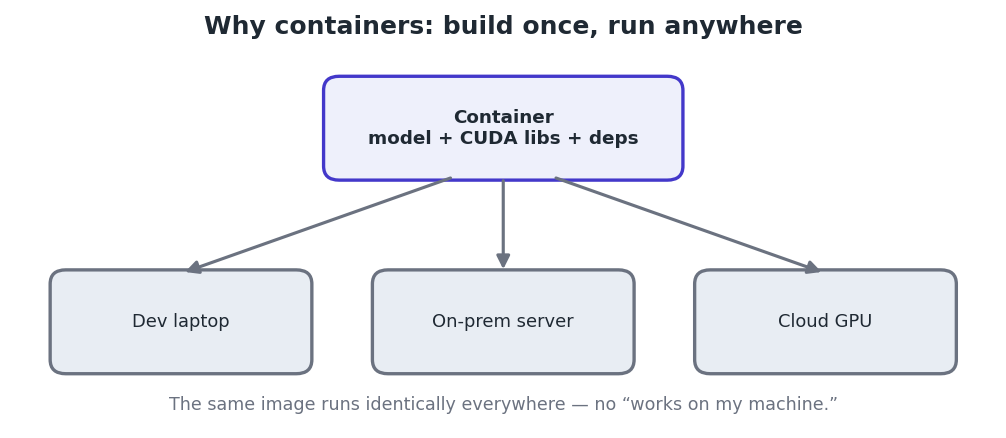
Figure 1 — One image, built once, runs the same on a laptop, a server, or a rented cloud GPU.
The GPU piece: NVIDIA Container Toolkit
For a container to use the GPU, the host needs the NVIDIA Container Toolkit, which exposes the GPU to Docker via the --gpus flag. 3 With it in place, the whole serving stack is a clean set of layers:
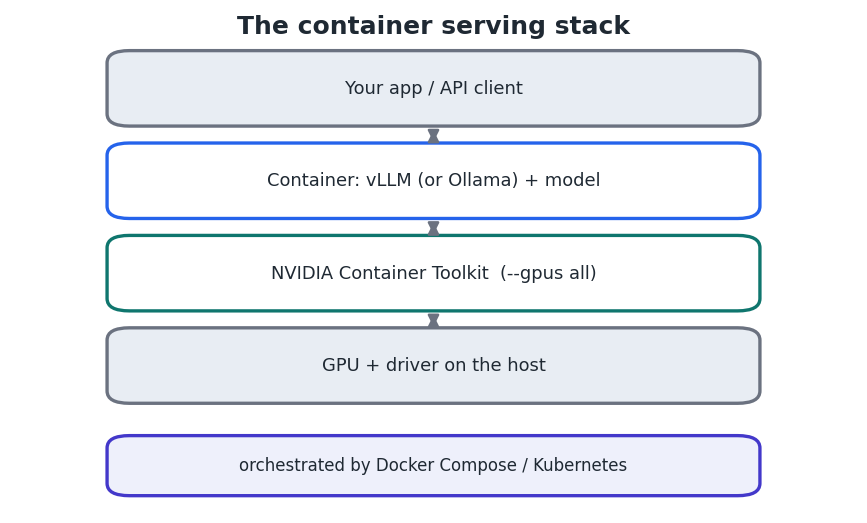
Figure 2 — The container holds the server and model; the toolkit connects it to the host GPU.
Containerizing a model server
vLLM publishes an official image, vllm/vllm-openai, that serves an OpenAI-compatible API. Starting it is one command:
docker run --rm --gpus all --ipc=host -p 8000:8000 \
  -v ~/models:/model \
  vllm/vllm-openai:latest --model /model
OpenAI-compatible API now at http://localhost:8000/v1
--gpus all grants GPU access; --ipc=host is needed for vLLM's shared memory; -v mounts your model. Note Ollama also ships a container image, and Docker Model Runner (docker model pull/run) offers a Docker-native local workflow. vLLM is the choice when you need production throughput.
Managing complexity with Compose
As flags multiply, move the configuration into a Docker Compose file so the setup is version-controlled and repeatable:
services:
  vllm:
    image: vllm/vllm-openai:latest
    ports: ["8000:8000"]
    ipc: host
    command: --model meta-llama/Llama-3.1-8B-Instruct
    deploy:
      resources:
        reservations:
          devices:
            - driver: nvidia
              count: all
              capabilities: [gpu]
docker compose up starts the same service every time; add Prometheus and Grafana for monitoring.
Scaling with Kubernetes
For production traffic, Kubernetes runs containers across many machines with autoscaling and GPU device plugins. vLLM's stateless, container-friendly design fits this well; the main gotcha is setting generous startup/health-probe timeouts because loading a large model takes time. 3 Smaller teams often stop at Compose on a single GPU host — Kubernetes earns its complexity only at scale.
Cloud hosting options
- Rented GPU clouds. Run your container on a RunPod pod or similar (see the previous guide) — full control, pay by the hour.
- Managed model microservices. NVIDIA NIM and NGC containers provide pre-optimized, ready-to-deploy model services.
- Serverless containers & hyperscalers. Scale-to-zero container platforms and the big clouds (AWS, GCP, Azure) run the same image with managed autoscaling.
A minimal path to production
- Install the NVIDIA Container Toolkit on the GPU host.
- Pull or build your image (start from vllm/vllm-openai; pin the tag).
- Run it locally with --gpus all and confirm the API responds.
- Move the config into Compose and add monitoring.
- Deploy the same image to the cloud or Kubernetes when you need scale.
Key takeaways
- Containers make AI workflows consistent, isolated, reproducible, and ready to orchestrate. 1
- The NVIDIA Container Toolkit (--gpus all) gives containers GPU access; vllm/vllm-openai serves an OpenAI API in one command. 2
- Use Docker Compose for single-host setups; Kubernetes for scaled production (mind model-load probe timeouts).
- The same image runs on your machine, a rented GPU, or a managed cloud service — that portability is the whole point.


