

This guide gets a real model running on your own computer — Windows, Linux, or macOS — in a few minutes. You will pick one of two beginner-friendly tools, install it, download a model sized to your hardware, and chat with it entirely offline.
Two easy paths
Both tools below run on all three operating systems and use llama.cpp underneath, so results are similar. Pick by how you like to work.
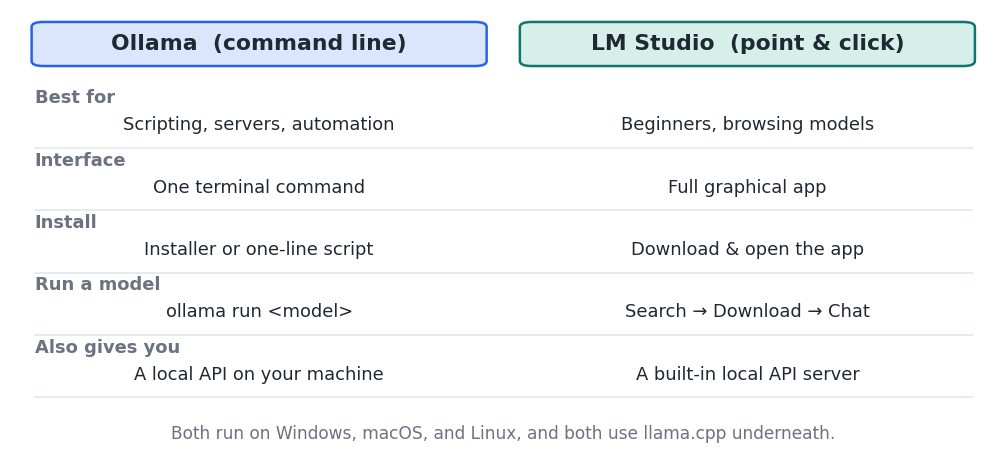
Figure 1 — Ollama is a single command; LM Studio is a full graphical app. You only need one.
Before you start
Confirm your machine can hold the model you want. As a rule of thumb, a 7–8B model at 4-bit needs about 6 GB of VRAM or unified memory, a 14B needs ~10 GB, and a 32B needs ~20 GB. 5 If in doubt, start small (a 3B model) and work up. The Level 2 requirements guide covers sizing in detail.
Project A — Run a model with Ollama (command line)
- Install Ollama. On macOS and Windows, download the installer from ollama.com and run it. On Linux, open a terminal and run the official install script:
Linux — install Ollama
curl -fsSL https://ollama.com/install.sh | shOn Windows, use PowerShell only if you prefer the CLI installer; most users just run the downloaded .exe.
- Pick a model that fits your memory. Good starting points are llama3.2 (3B, tiny), llama3.1:8b (needs ~6 GB), or qwen2.5:14b (needs ~10 GB).
- Download and run it with one command. Ollama fetches the model the first time, then drops you into a chat prompt:
Downloads on first run, then starts an interactive chat
ollama run llama3.1:8b- Chat, then exit. Type a message and press Enter. To leave the chat, type /bye (or press Ctrl+D).
- Optional — call it like an API. Ollama also serves a local endpoint other programs can use. From another terminal:
curl http://localhost:11434/api/generate -d '{
  "model": "llama3.1:8b",
  "prompt": "Explain what a token is in one sentence.",
  "stream": false
}' The response comes back as JSON — this is how you wire a local model into your own scripts and apps. Note The model and all prompts stay on your machine. Nothing is sent to any provider, and it works with your network disconnected.
Project B — Run a model with LM Studio (graphical app)
- Download and install LM Studio. Get the installer for your operating system from lmstudio.ai and open the app.
- Find a model. Use the search (magnifying-glass) tab and search for a model such as “Llama 3.1 8B Instruct.” LM Studio shows which quantized versions fit your hardware.
- Download a quantized version. Choose a Q4_K_M build (the community-standard balance of size and quality) and click Download.
- Load it and chat. Open the chat tab, select the downloaded model at the top, wait for it to load into memory, then type a message.
- Optional — start the local server. The “Developer” / “Local Server” tab exposes the same kind of local API as Ollama, so your own tools can connect to it.
What you now have
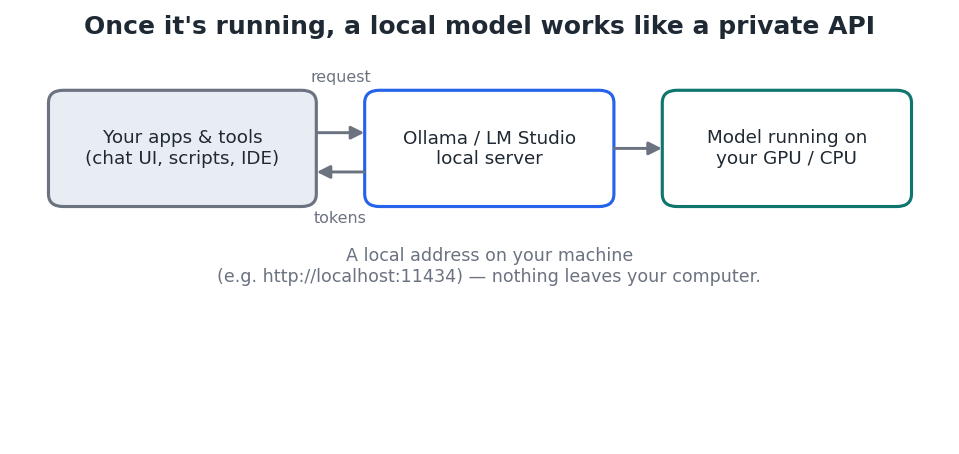
Figure 2 — A running local model behaves like a private API on your own machine.
Either path leaves you with a model you can chat with and a local endpoint you can build on — the foundation for the harnessing, MCP, and skills guides later in this series.
Choosing the right model for your hardware
- 8 GB memory: 3B–8B models (e.g. Llama 3.1 8B, Qwen 2.5 7B) at Q4.
- 12–16 GB: up to ~14B models comfortably.
- 24 GB: up to ~32B; a 70B model will be tight or need offloading. 5
- 64–128 GB unified (Mac / GB10): 70B and larger.
If something goes wrong
- Model won't load or is very slow: it's too big for your memory — choose a smaller model or a lower quantization (e.g. Q4 instead of Q8).
- No GPU being used: on Windows/Linux confirm your NVIDIA drivers and CUDA are installed; on Mac, Apple Silicon is used automatically.
- First run is slow: the initial download of the model file is large; later runs load from disk.
Key takeaways
- Ollama (one command) and LM Studio (graphical) both run local models on Windows, macOS, and Linux.
- Downloading and running a model is a single step: ollama run <model>, or search-and-download in LM Studio.
- Both expose a local API, so anything on your machine can build on the model — with no data leaving your computer.
- Match the model size to your memory, and start small if unsure.


